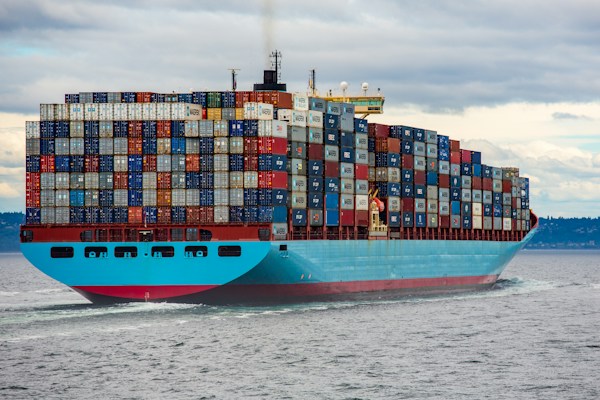
If you've heard developers say "but it works on my machine!" — Docker solves exactly that problem. Docker packages your application with everything it needs (code, runtime, libraries) into a container that runs identically everywhere. This beginner guide makes Docker easy to understand and use.
📦 What is Docker?
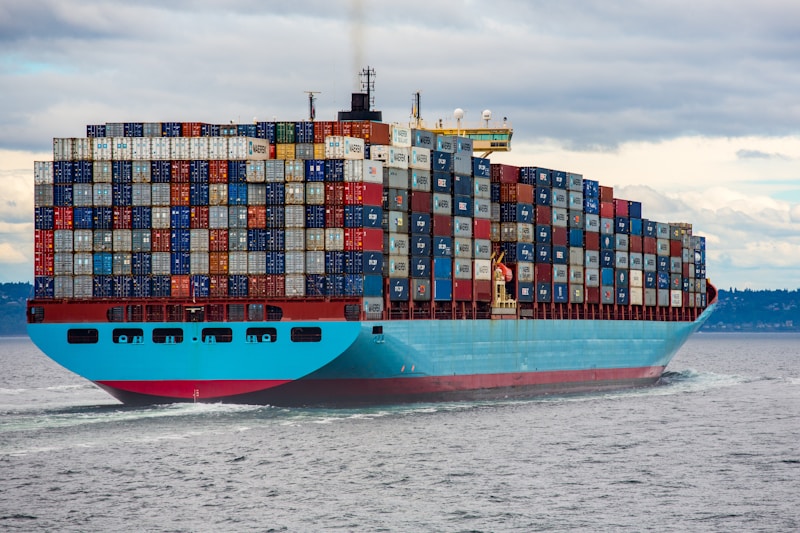
Docker is a platform that lets you package, ship, and run applications in isolated environments called containers. Unlike virtual machines, containers share the host OS kernel, making them incredibly lightweight and fast.
🆚 Containers vs Virtual Machines
| Feature | Containers | Virtual Machines |
|---|---|---|
| Startup Time | Seconds | Minutes |
| Size | MBs | GBs |
| Performance | Near-native | Overhead from hypervisor |
| Isolation | Process-level | Full OS-level |
| OS | Shares host kernel | Own OS per VM |
🔧 Installing Docker
# macOS
brew install --cask docker

# Ubuntu
sudo apt-get update
sudo apt-get install docker.io docker-compose-v2
sudo systemctl start docker

# Windows — Download Docker Desktop from docker.com

# Verify installation
docker --version
docker run hello-world
🐳 Your First Container
# Run an Nginx web server in a container
docker run -d -p 8080:80 --name my-web nginx

# Now visit http://localhost:8080 — you have a web server running!

# See running containers
docker ps

# View logs
docker logs my-web

# Stop and remove
docker stop my-web
docker rm my-web
📝 Writing a Dockerfile
A Dockerfile is a recipe for building your own container image:
# Dockerfile for a Node.js application
FROM node:22-alpine

# Set working directory
WORKDIR /app

# Copy package files first (better caching)
COPY package*.json ./

# Install dependencies
RUN npm ci --only=production

# Copy application code
COPY . .

# Expose port
EXPOSE 3000

# Start the app
CMD ["node", "server.js"]
# Build the image
docker build -t my-node-app .
# Run it
docker run -d -p 3000:3000 my-node-app
# Visit http://localhost:3000🎼 Docker Compose — Multi-Container Apps
Most real apps need multiple services (app + database + cache). Docker Compose manages them all:
# docker-compose.yml
services:
  app:
    build: .
    ports:
      - "3000:3000"
    environment:
      - DATABASE_URL=postgres://user:pass@db:5432/myapp
      - REDIS_URL=redis://cache:6379
    depends_on:
      - db
      - cache

  db:
    image: postgres:16-alpine
    environment:
      POSTGRES_USER: user
      POSTGRES_PASSWORD: pass
      POSTGRES_DB: myapp
    volumes:
      - pgdata:/var/lib/postgresql/data

  cache:
    image: redis:7-alpine

volumes:
  pgdata:
# Start everything with one command
docker compose up -d
# View all running services
docker compose ps
# View logs from all services
docker compose logs -f
# Stop everything
docker compose down📋 Essential Docker Commands
| Command | Description |
|---|---|
docker images | List all local images |
docker exec -it container bash | Open shell inside container |
docker system prune | Clean up unused resources |
docker volume ls | List persistent volumes |
docker network ls | List Docker networks |
🐳 Docker Best Practices: Always use specific image tags (e.g.,
node:22-alpine not node:latest), use multi-stage builds to reduce image size, add a .dockerignore file, and never store secrets in your Dockerfile. Use environment variables or Docker secrets instead.